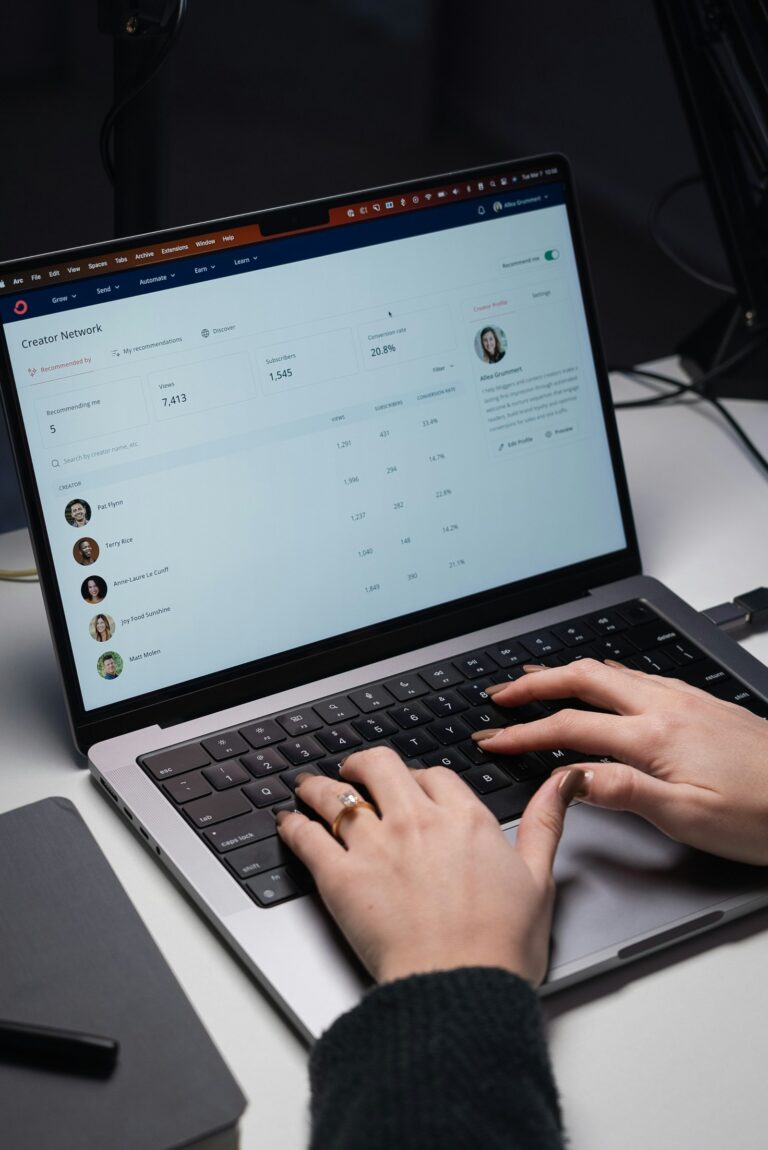
To automate client onboarding, pick one trigger that means “this client said yes” (a signed contract, a paid invoice or a row marked YES in a sheet), then connect it to the steps you repeat for every client: a personal welcome email, a shared folder, your next-step links and a tracker update. A no-code tool like Make.com runs the whole sequence in minutes.
- Automate the repeatable parts of onboarding (emails, folders, links, tracking), not the relationship.
- Start with one clear trigger, such as a contract signed, an invoice paid or a client marked YES.
- A 5-step Make.com scenario covers most service businesses: trigger, AI welcome email, Drive folder, Gmail send, tracker update.
- Make.com’s free plan (1,000 credits a month, 2 active scenarios) is enough for a small client list.
- Test with a fake client first and mark each row as sent so nobody gets emailed twice.
What is automated client onboarding?
Automated client onboarding is a workflow that runs the moment a new client says yes and handles the admin you would otherwise do by hand: sending the welcome email, sharing the right documents and links, creating the client’s folder and updating your records. You still run the kickoff call and build the relationship. The software handles the copy-paste.
For a freelancer, coach, consultant or small agency, onboarding is usually the same 6 to 10 small tasks for every client. In my experience, done manually it takes 30 to 60 minutes per client and something gets forgotten when you’re busy. Automated, it takes a few minutes of setup per client, and every client gets the same, complete first impression.
Why is client onboarding worth automating?
The first week sets the tone for the whole engagement. In Wyzowl’s customer onboarding survey, 86% of people said they would be more likely to stay loyal to a business that invests in onboarding content that welcomes and educates them after they buy, and 63% said onboarding is an important factor in deciding whether to buy at all (Wyzowl, Customer Onboarding Statistics).
That’s the business case. The day-to-day case is simpler:
- Speed. A client who just paid is at peak excitement. A welcome email that arrives in minutes keeps that momentum; one that arrives three days later feels like an afterthought.
- Consistency. Every client gets the contract link, the invoice, the booking link and the intake form, in the right order, every time.
- Capacity. If you sign four clients a month and onboarding takes 45 minutes each, that’s three hours a month of admin you get back.
- Fewer awkward mistakes. No wrong name in a copied template, no forgotten folder share, no client emailed twice.
If onboarding is where your clients feel the first drop-off, it’s often one of several automation gaps that quietly cost revenue.
What should a client onboarding process include?
Before you automate anything, write your current process down. Most service businesses end up with a version of this checklist:
| Onboarding step | Automate it? | How |
|---|---|---|
| Welcome email with next steps | Yes | AI-drafted, personalised, sent from your own Gmail |
| Contract or proposal to sign | Yes | Link included in the welcome email, or sent by your e-signature tool |
| Invoice or payment link | Yes | Link included in the welcome email, or created by your invoicing tool |
| Intake form or questionnaire | Yes | Google Form, Typeform or Tally link in the email |
| Shared client folder | Yes | Google Drive folder created and shared with the client’s email |
| Kickoff call booking | Yes | Booking link (Google Calendar, Calendly) in the email |
| Client record and status | Yes | Tracker sheet or CRM updated automatically |
| Kickoff call itself | No | This is the relationship. Keep it human. |
| Strategy and first deliverable | No | Your actual expertise. |
Notice the pattern: everything that’s the same for every client can be automated. Everything that needs judgement stays with you. If you’re unsure where onboarding sits in the bigger picture, it’s the first step of the retention stage in lifecycle marketing, and a key touchpoint on your customer journey map.
How to automate client onboarding in 7 steps

This is the exact structure I use for service businesses. It runs on Make.com, Google Sheets, Gmail, Google Drive and Google Gemini, so there’s nothing to install and no code to write.
Step 1: Choose your “client said yes” trigger
Your automation needs one clear signal that a person is now a client. Good options:
- A row in a Google Sheet changes to YES (simplest, and works with any sales process)
- A deal moves to “Closed won” in your CRM
- A contract is signed in your e-signature tool
- An invoice is paid
If you’re a solo business, start with the sheet. You already know when someone says yes; marking the row takes two seconds and keeps you in control of when onboarding starts.
Step 2: Build a simple client tracker
Create a Google Sheet with one row per client and these columns: client name, email, business name, service, start date, Ready to onboard (YES/NO) and Onboarding status. The status column is what stops duplicates: once a client is onboarded, the automation writes “Onboarding Sent” there and skips that row from then on.
Step 3: Watch the sheet in Make.com
In Make.com, start a new scenario with the Google Sheets module that searches or watches rows, filtered to rows where Ready to onboard is YES and Onboarding status is empty (Make.com’s Google Sheets documentation covers the connection). This is a scheduled (polling) check, not an instant trigger, so choose how often it runs. Make’s free plan allows a minimum of 15 minutes between runs (Make.com pricing). For onboarding, every 1 to 3 hours is plenty and keeps you well within the free credits.
Step 4: Let AI draft a personal welcome email
Add a Google Gemini module and give it a prompt that includes your name, your business, your tone and the four next steps every client needs (for example: sign the contract, pay the first invoice, fill in the intake form, book the kickoff call). Map the client’s name, business and service from the sheet into the prompt. You’ll need a Gemini API key, which you can create in a couple of minutes in Google AI Studio (Google’s Gemini API key guide).
The result is an email that mentions the client’s business and service by name and sounds like you, without you rewriting the same message from scratch each time.
Step 5: Create and share the client’s Drive folder
Add a Google Drive module that creates a folder named after the client inside your “Clients” folder, then shares it with the client’s email address as a commenter or editor. Google’s own help article explains the permission levels if you’re unsure which to choose (Google Drive help: share files and folders). Put the folder link in the welcome email so the client has one place for everything.
Step 6: Send the email from your own Gmail
Add a Gmail “Send an email” module. Use the AI-written body, the client’s email from the sheet and a clear subject line such as “Welcome aboard, [Name]: your next steps.” Sending from your own inbox means replies come straight back to you, and the email looks like a personal note, not a newsletter.
Step 7: Update the tracker and test
Finish with a Google Sheets “Update a row” module that writes “Onboarding Sent” and the date into the status column. Then test with a fake client (your own second email address works) before you turn the schedule on. Check three things: the email reads well, the folder is shared with the right person, and the row is marked so it won’t run again.
Want the finished version instead of building from scratch? The Client Onboarding Autopilot is this exact 5-module Make.com scenario, with the tracker sheet and a step-by-step setup guide.
See the template in the StoreWhich tools can automate client onboarding?
You don’t need an expensive client portal to start. Here’s how the common options compare for a small service business:
| Approach | Best for | Trade-off |
|---|---|---|
| Make.com + Google Workspace | Solo businesses and small teams already using Gmail, Drive and Sheets | You set it up once; the free plan covers low volume |
| Zapier + Google Workspace | Simple, linear workflows | Each action step counts as a task, so multi-step flows use up a plan faster |
| CRM workflows (HubSpot, ActiveCampaign) | Teams that already run sales in a CRM | Folder creation and AI drafting may need add-ons or paid tiers |
| All-in-one client portals | Agencies with many clients and a team | Monthly cost and another tool for clients to log into |
If you’re just starting out, the first row is usually the best fit: it uses tools you already pay for (or are free), and you can move the logic into a CRM later. I compare tools for each client situation on the services page.
Common client onboarding automation mistakes
- Automating before the process is clear. If the manual checklist is messy, the automation will be too. Write the steps down first.
- No duplicate protection. Without a status column or filter, a scenario that runs every hour can email the same client every hour.
- Letting AI send without guardrails. Give the prompt your exact next steps and links, and tell it what not to promise. Review the first few emails it writes.
- Burying the next steps. Number them. Clients skim. One link per step, in the order you want them done.
- Forgetting the human follow-up. Automation sends the welcome. You still call, check in after week one and ask how it’s going.
Once onboarding is running, the natural next automations are the ones that keep clients engaged after week one. The three email flows every beginner should build are a good place to go next.
The bottom line
Client onboarding is one of the easiest and most valuable things a service business can automate: the steps are the same every time, the client notices the speed and the polish, and you get hours back every month. Start with one trigger, one welcome email, one shared folder and one tracker update. You can see more of the systems I’ve built for clients in my portfolio.
Frequently asked questions
What is client onboarding automation?
Client onboarding automation is a workflow that runs when a new client says yes and handles the repeatable admin automatically: the welcome email, next-step links, a shared folder and updating your client records.
Can I automate client onboarding for free?
Yes, for a small number of clients. Make.com’s free plan includes 1,000 credits a month and 2 active scenarios, with at least 15 minutes between runs (Make.com pricing). Gmail, Google Drive and Google Sheets are free with a Google account, and Gemini offers API keys through Google AI Studio.
How long does it take to set up an automated onboarding workflow?
A simple 5-step workflow (sheet trigger, AI email, Drive folder, Gmail send, tracker update) usually takes an afternoon to build and test from scratch, or under an hour if you start from a ready-made Make.com template.
Will automated onboarding emails feel impersonal?
Not if you set them up well. Send from your own Gmail, include the client’s name, business and service, and write the AI prompt in your own voice. The goal is a fast, personal note, not a newsletter.
What should I not automate in client onboarding?
Keep the kickoff call, strategy decisions and the first check-in personal. Automation should handle the admin so you have more time for the parts of onboarding that build trust.
Not sure which parts of your client journey to automate first? I’ll review your funnel and onboarding and show you where leads and clients are slipping through.
Book your Visibility & Lead Audit
Shiela De La Cruz
Founder of Anchor Growth Co. and a HubSpot-certified marketer (Marketing Hub, Sales Hub, Inbound). Shiela builds lifecycle marketing and automation systems in HubSpot, ActiveCampaign, Klaviyo, Make and Zapier for environmental businesses. More about Shiela · YouTube · TikTok